
From Script to Audiobook
How Replica 11 Turns Dialogue into ElevenLabs Audio
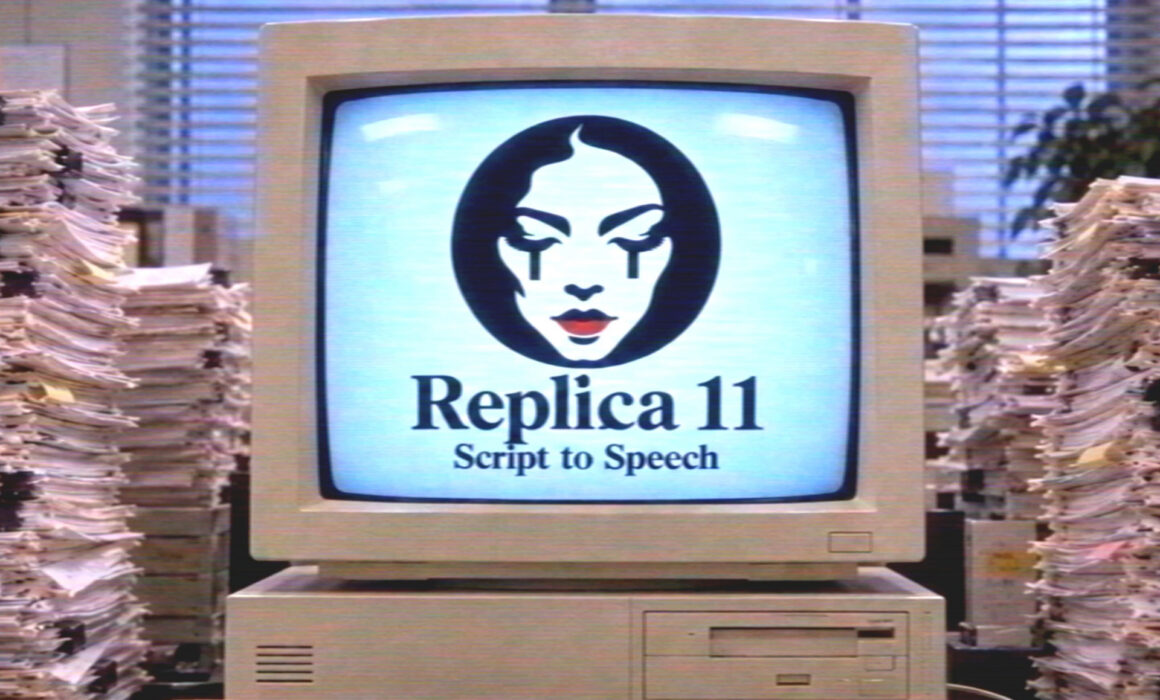
Replica 11 – Script to Speech is a Windows desktop app for writers, podcasters, game developers, and audiobook creators who are tired of hand-splitting scripts into voice takes. Paste a screenplay-style script, let the app detect characters and lines, map each role to an ElevenLabs voice, optionally polish the text with ChatGPT — then generate dialogue audio in batches.
Get the product: Replica 11 – Script to Speech
A hundred paper scripts. One answer: Replica 11.
How to install Replica 11
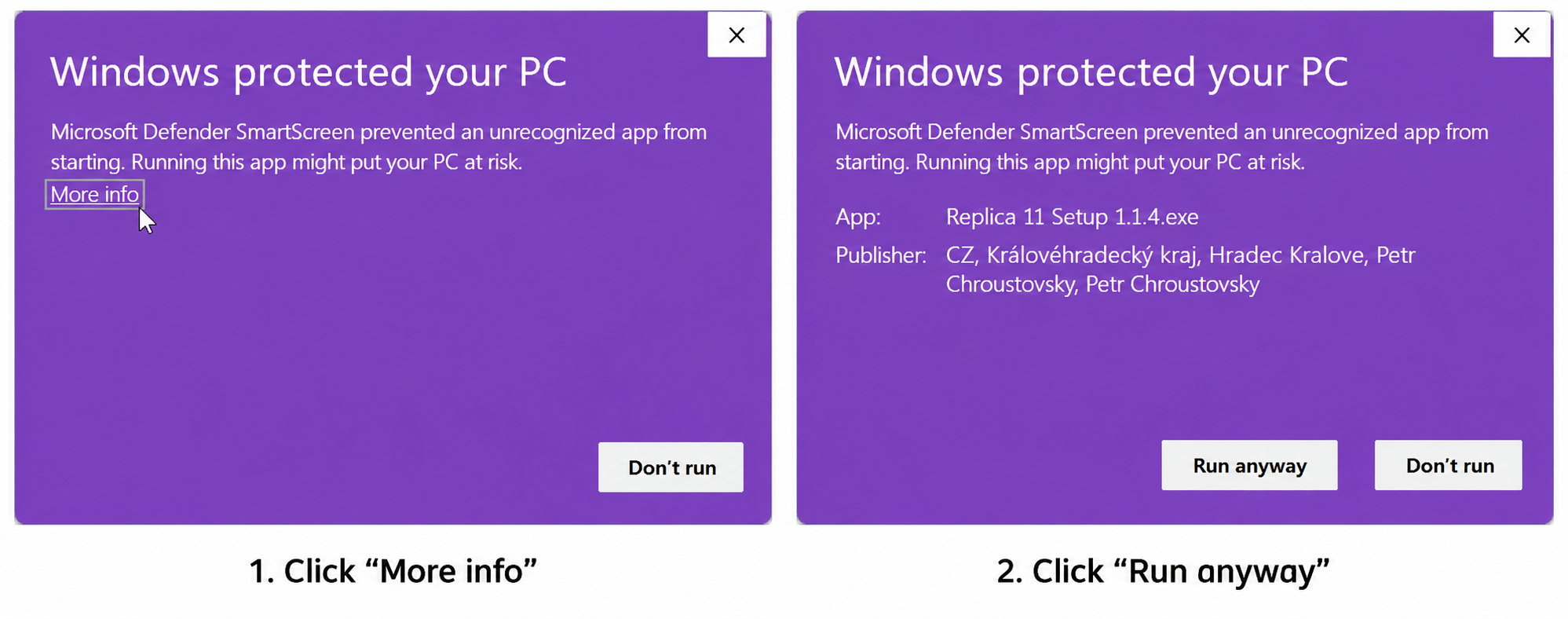
Replica 11 is a digitally signed application (signed since 12 October 2026). Because the software is new, Windows may show a Microsoft Defender SmartScreen warning on first install. This is normal and does not mean the file is unsafe. The installer is official and signed by the publisher. As Windows builds trust in the signature, the warning should become less common or go away.
- Download Replica 11.
- Unzip and run the Replica 11 setup.exe.
- If SmartScreen appears, click More info, then Run anyway.
Why this tool exists
ElevenLabs already gives you excellent AI voices. The painful part is everything before you hit Generate: splitting speakers, fixing messy formatting, tagging emotions, assigning voice IDs, exporting the right JSON, and keeping character voices consistent across dozens (or hundreds) of lines.
Replica 11 is that missing production layer — a focused script → structure → voices → audio pipeline built for Windows.
What you get in one app:
- Automatic parsing of speakers, narration, and stage directions
- Local analysis (works even without OpenAI)
- Optional ChatGPT structuring + emotional enhancement
- Per-character ElevenLabs voice mapping (stability / similarity)
- Direction tags like `[curious]`, `[calm]`, `[confident]`
- Mixed-language support (including English / Japanese workflows)
- Export to TXT, JSON (Text to Dialogue), Studio JSON, CSV, Markdown
- Batch generation via ElevenLabs API straight to a local folder
- Saveable projects and license management on d3arts.cz
The pipeline at a glance
Raw script → Load / paste → Clean text (optional) → Analyze locally OR Process with ChatGPT (+ enhance) → Review & Approve structure → Map ElevenLabs voice IDs → Export and/or Generate with ElevenLabs → Local WAV / MP3 files in your export folder
Nothing is sent to ElevenLabs until you approve the structure. That alone saves API credits and keeps you in control.
Quick start
Open Replica 11 and load your script
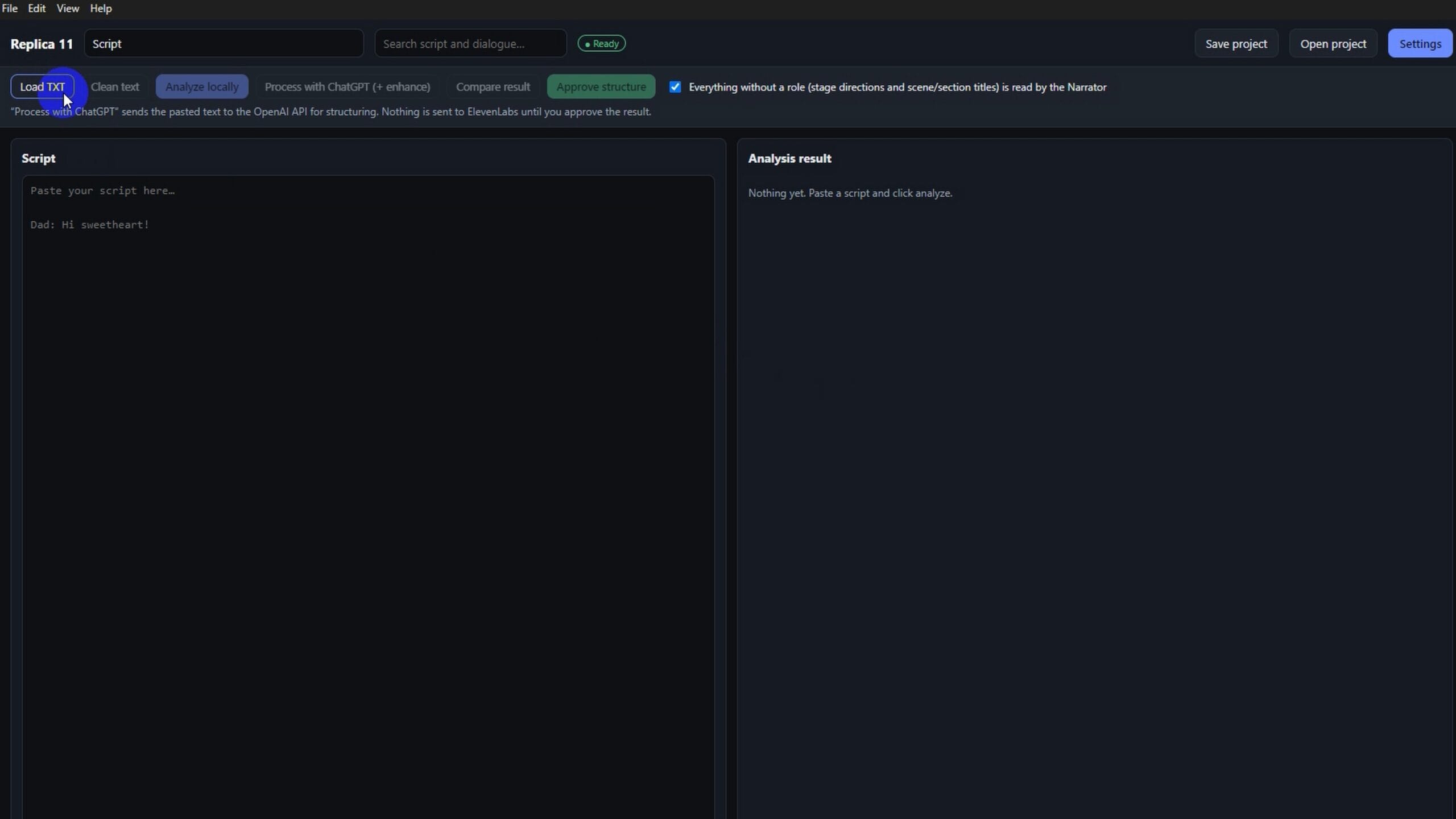
Start with a clean project. Use Load TXT or paste directly into the Script panel. The toolbar already shows the full workflow: Clean text → Analyze locally → Process with ChatGPT → Compare → Approve structure.
Tip: Keep the Narrator checkbox on if stage directions and scene titles should be spoken by a dedicated narrator voice.
Paste a real multi-character script
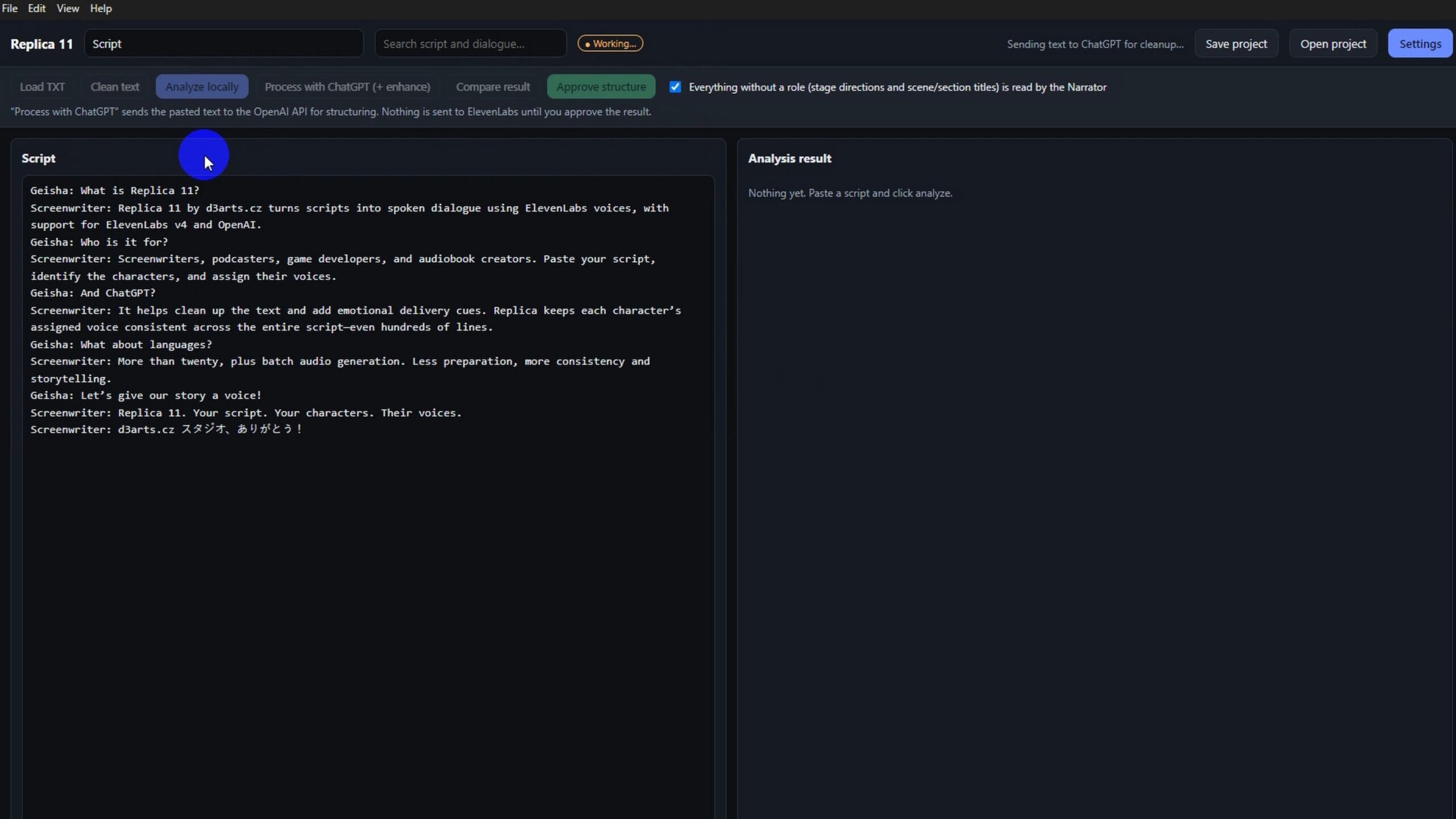
Drop in dialogue with clear speaker labels (e.g. `Geisha:` / `Screenwriter:`). Replica 11 is built for this exact format — long scenes, many lines, consistent character names.
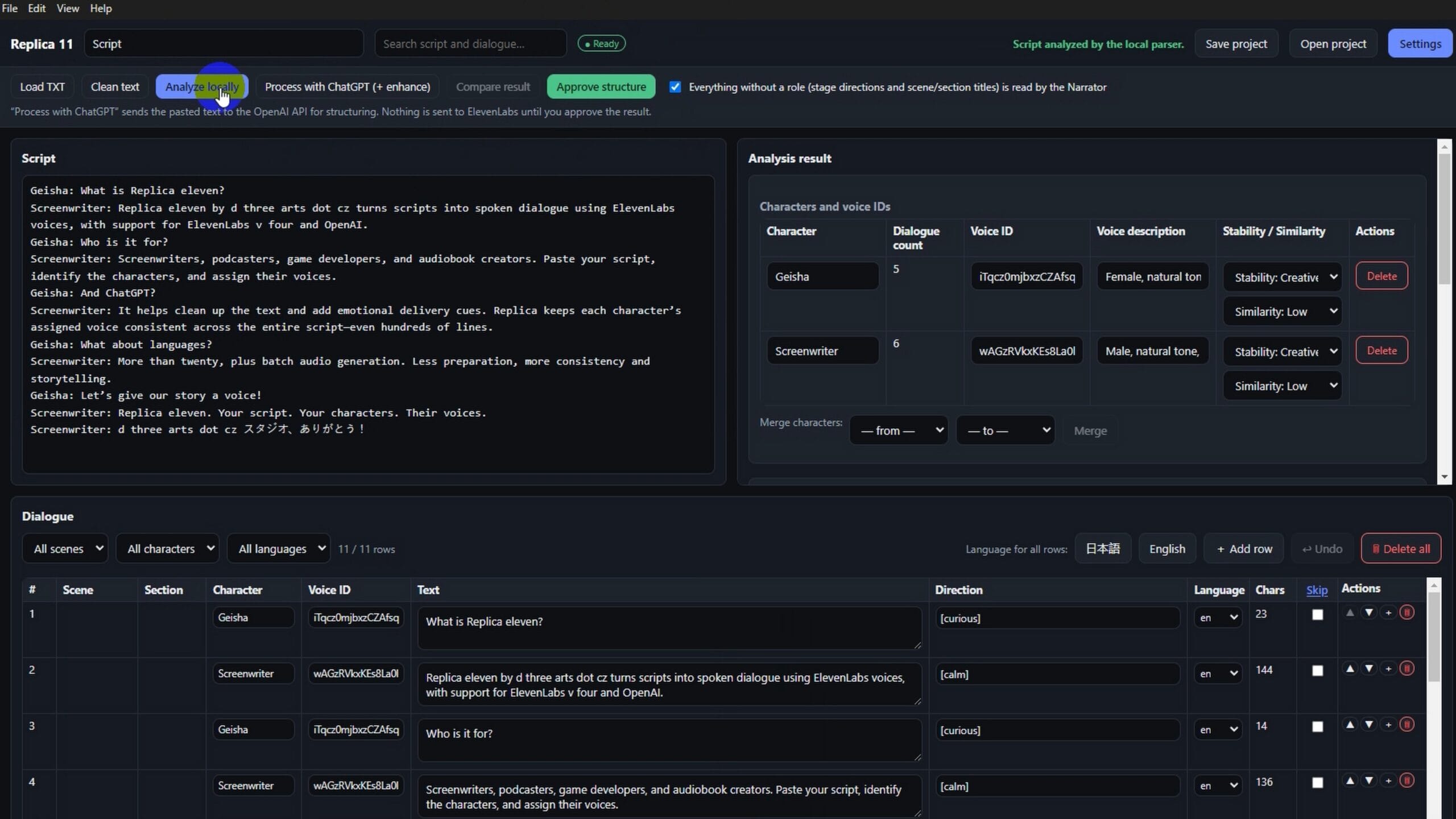
Analyze locally — characters and dialogue appear
Click Analyze locally. Replica 11 splits the text into characters and a line-by-line Dialogue table: scene, character, voice ID, text, direction, language, character count.
You can already:
- Merge or delete misdetected characters
- Set Stability (e.g. Creative) and Similarity per character
- Edit directions such as curious or calm
- Filter rows by scene, character, or language
Copy Voice IDs from ElevenLabs
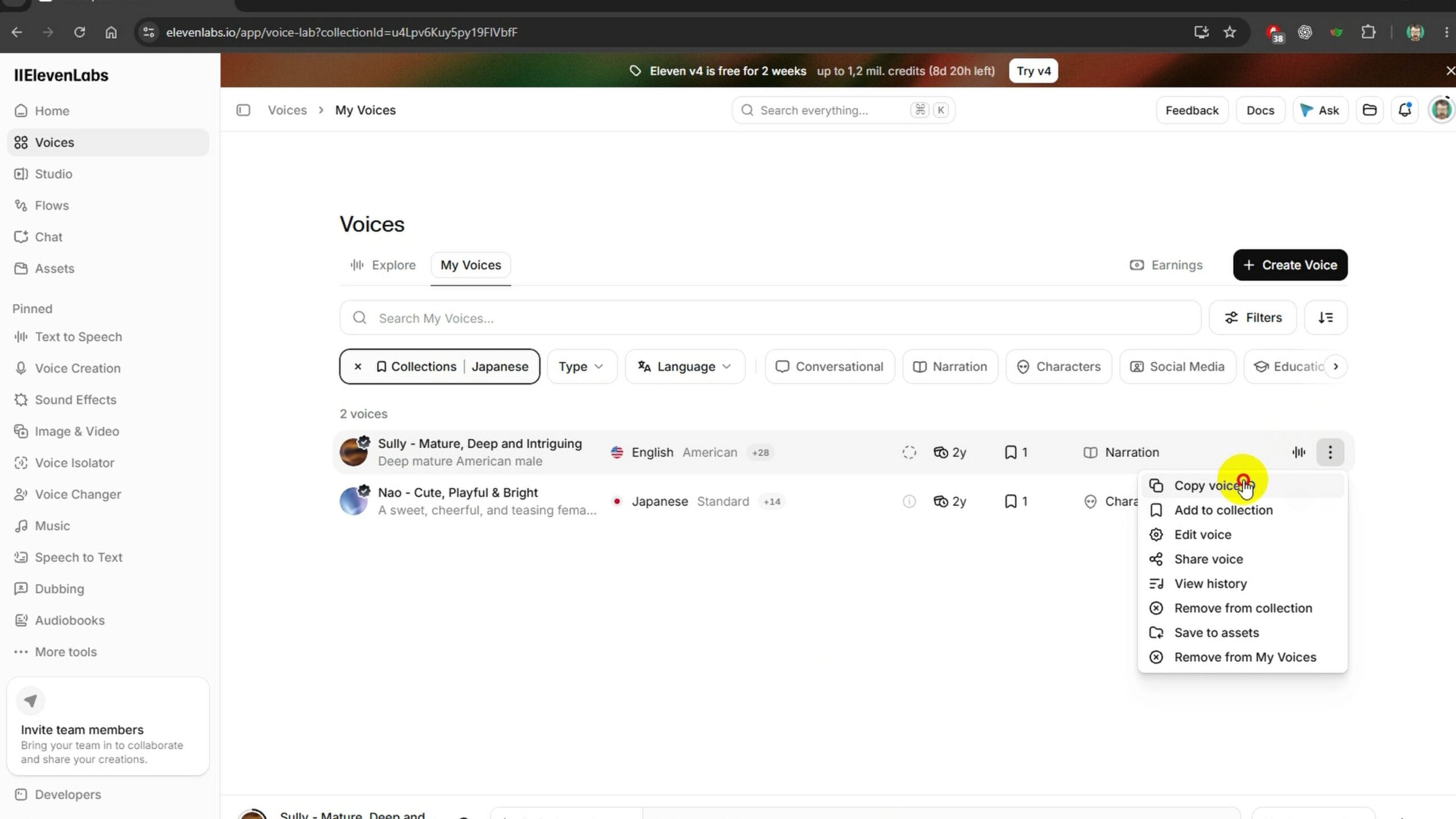
ElevenLabs — Copy voice ID
(Optional) Process with ChatGPT for structure + emotion
Want deeper cleanup and performance cues? Click Process with ChatGPT (+ enhance). Replica 11 asks for confirmation first — OpenAI structures the script; ElevenLabs is still not contacted.
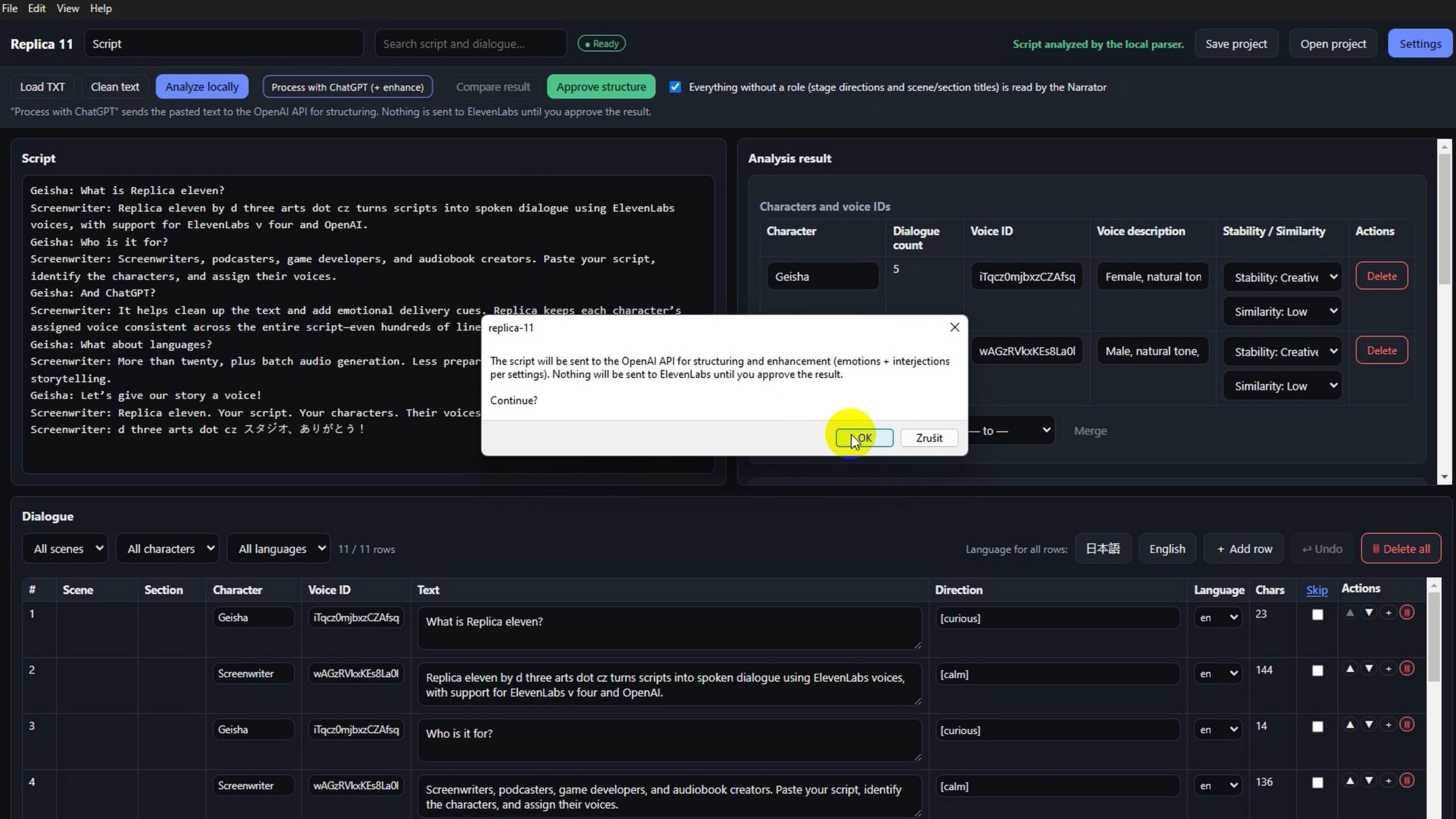
Confirm sending script to OpenAI
When processing finishes, you get a review modal:
- Recognized characters + suggested voice profiles
- Full dialogue list with directions and language confidence
- Warnings for uncertain blocks (e.g. mixed-language lines)
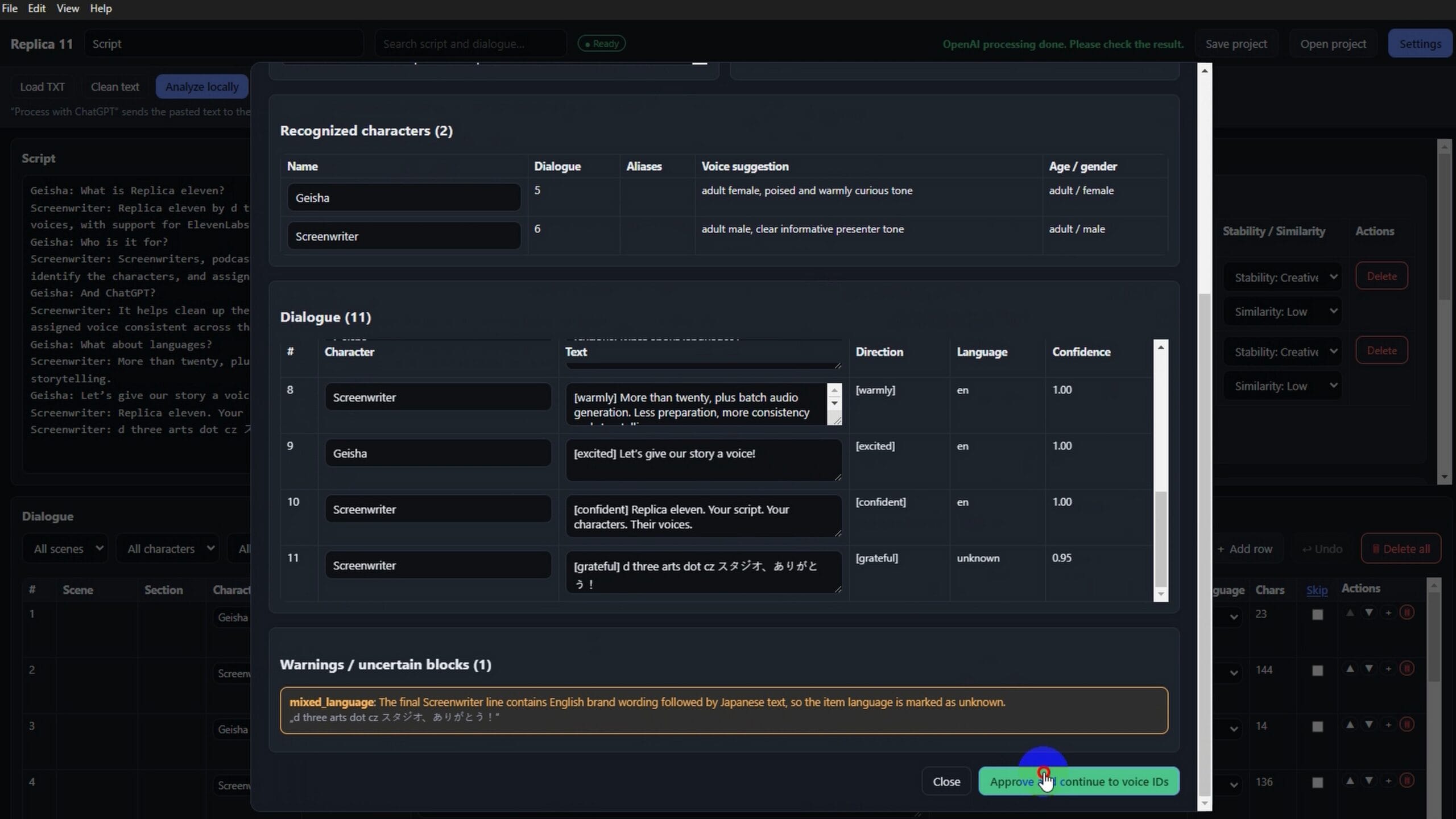
OpenAI processing done — review and approve
Then click Approve and continue to voice IDs.
Approve structure and validate the project
Export options:
| Format | Typical use |
| --- | --- |
| TXT | Readable script dump |
| JSON (Text to Dialogue) | ElevenLabs dialogue workflows |
| Studio JSON | Studio / advanced pipelines |
| CSV | Spreadsheets, QA, localization |
| Markdown | Docs and reviews |
Generate with ElevenLabs
Pick your audio folder, then hit Generate with ElevenLabs. The Generation log shows each package running with language override, stability, and similarity settings.
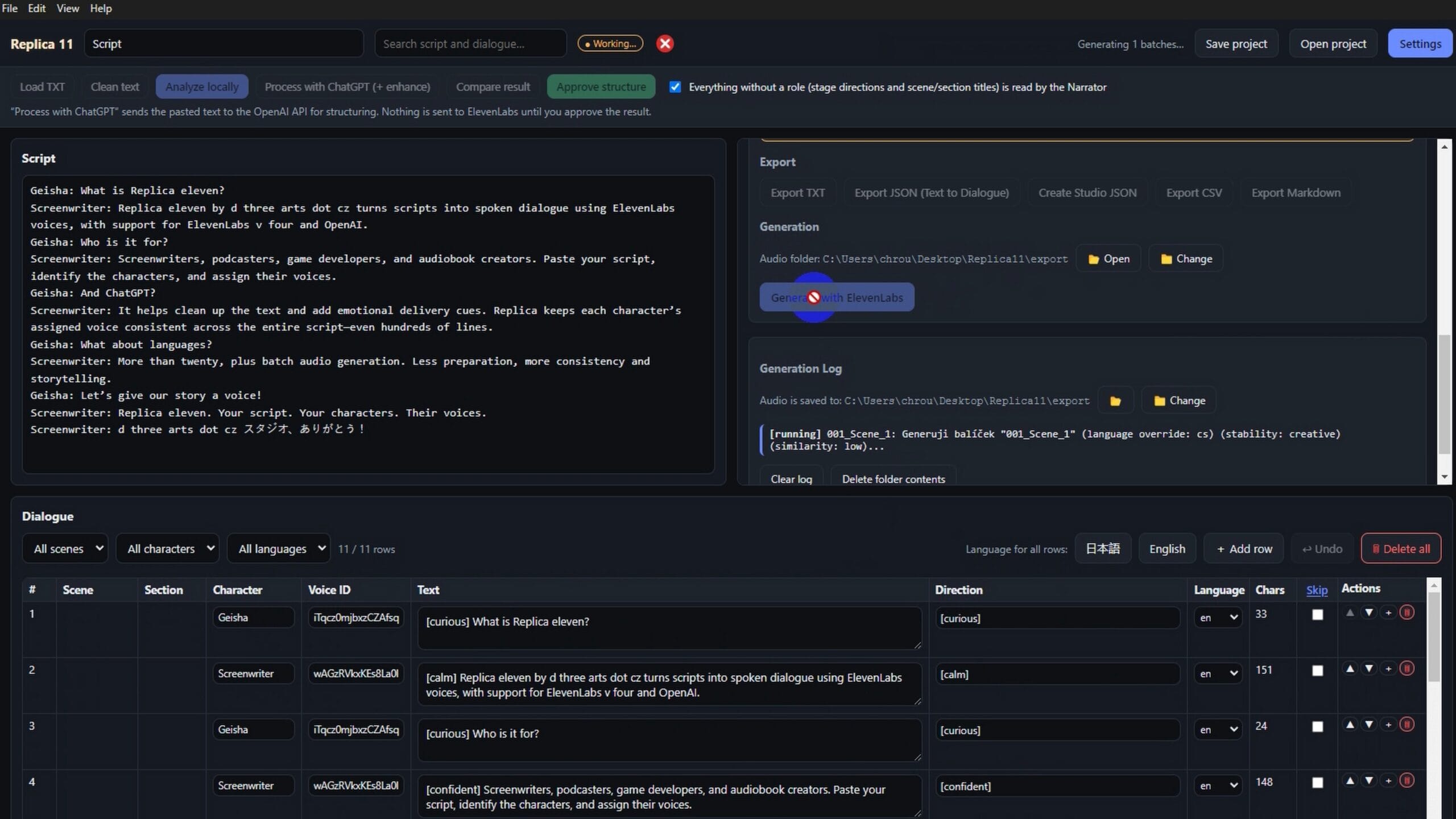
Generating audio with ElevenLabs
When it finishes, you get a clear success banner and a WAV (or configured format) in the export folder.
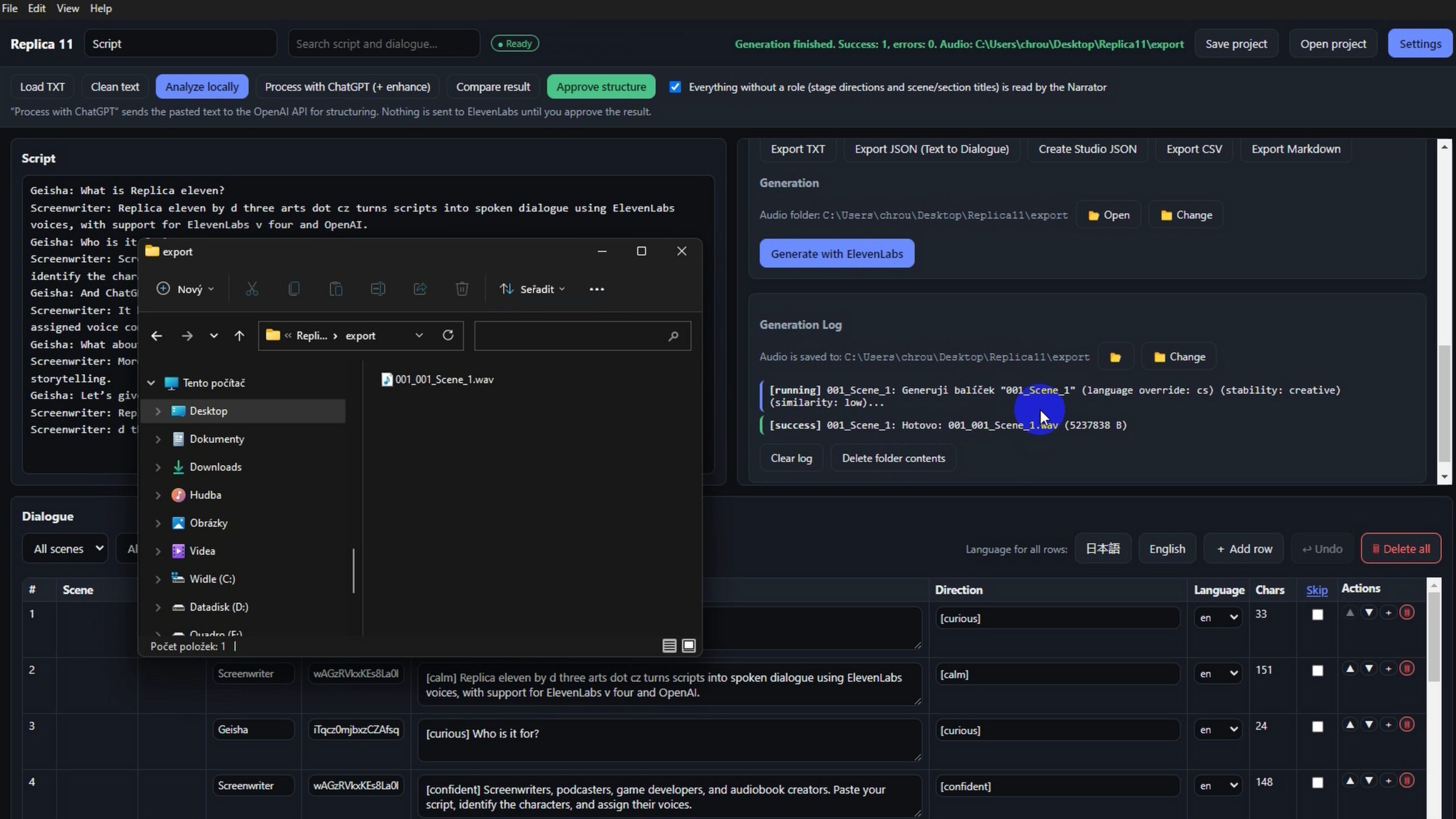
Generation finished — WAV in export folder
Save the project for later
Save as a Replica 11 Project (*.json) so you can reopen the same cast, directions, and scene layout tomorrow — without redoing the whole parse.
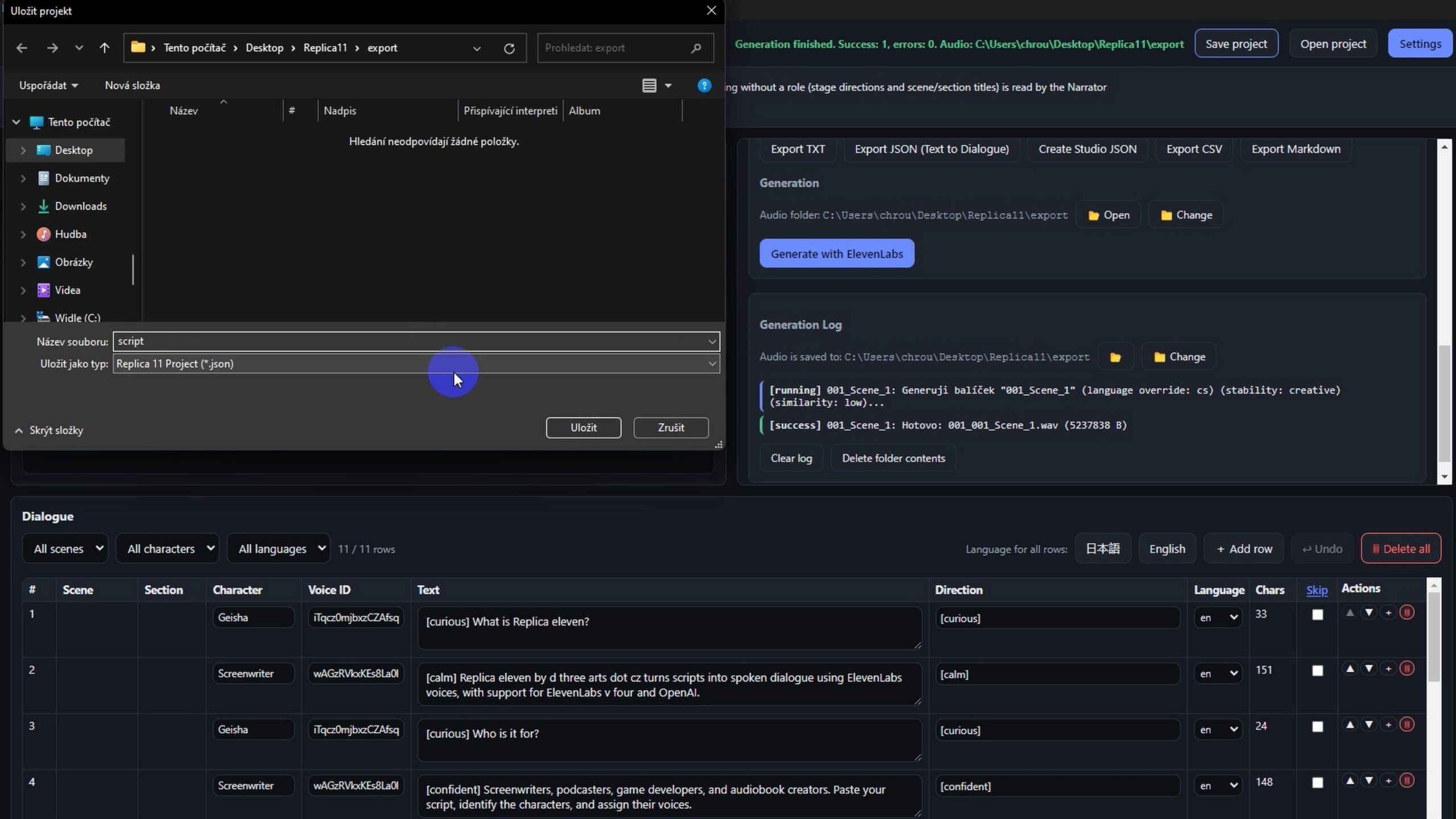
Save Replica 11 project
License and activations
Buy once, manage activations in your d3arts.cz account under License keys. Lifetime licenses show Never Expires, with clear activation slots (e.g. 1 / 2) and the ability to delete an old machine when you switch PCs.
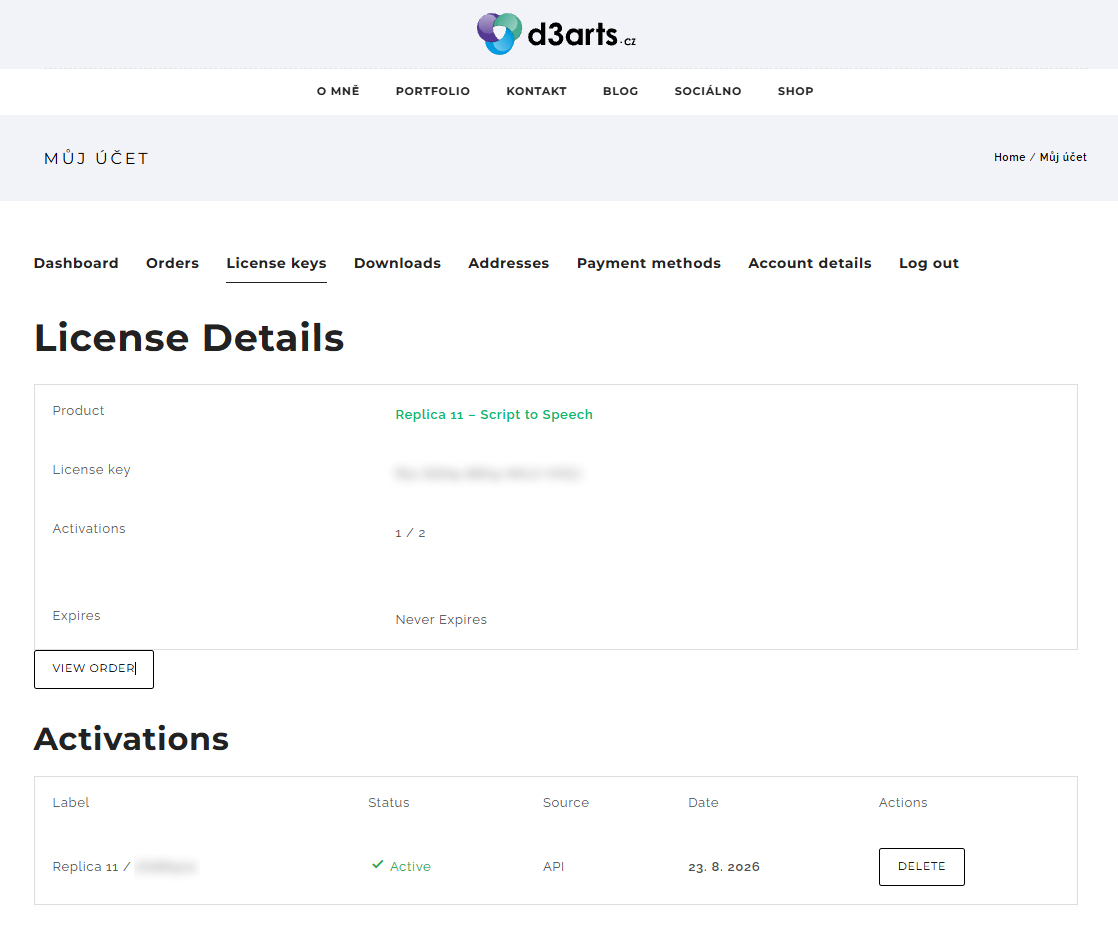
d3arts.cz account — Replica 11 license details
-
Who should use Replica 11
Screenwriters turning scenes into temp VO or full AI cast reads
Podcasters producing dialogue-heavy episodes without a booth day
Game developers batching NPC lines with stable character voices
Audiobook creators mapping narrators and characters before generation
If your workflow is “script in Word → chaos in ElevenLabs,” Replica 11 is the professional middle step you were missing.
Quick checklist
1. Install Replica 11 (Windows) and enter your license
2. Add ElevenLabs API key in Settings (OpenAI key optional)
3. Paste or Load TXT
4. Analyze locally **or** Process with ChatGPT
5. Approve structure
6. Paste Voice IDs from ElevenLabs
7. Export JSON / generate audio
8. Save the project
Get started
Try or buy Replica 11 – Script to Speech
Paste the script. Map the voices. Generate the scene.
That’s Replica 11.
Please note: Purchasing Replica 11 does not include credits or subscriptions for OpenAI (ChatGPT) or ElevenLabs. Access to these services and any usage costs must be arranged and paid for separately. Replica 11 connects these services and streamlines the preparation and conversion of long scripts into spoken audio.
Settings
Open Settings
- Launch Replica 11 on Windows.
- Top-right toolbar → click Settings.
API keys stay only on this PC. They are never stored in exports or the project file.
Languages & project files App language — UI language only. Does not change ElevenLabs generation language by itself. Secondary language — paired tags inside English lines (e.g. japanese / czech) and the second “set language for all rows” button in the Dialogue table.
Project (also available if license is blocking elsewhere): Open project / Save project / Load TXT
License Activate your key, Check now, or Deactivate on this computer (frees one of typically two slots). Account: https://d3arts.cz/muj-ucet/?d3_account=en
ElevenLabs
Get and save the API key
- Settings → ElevenLabs API → Get Keys (or https://elevenlabs.io/app/developers/api-keys)
- Paste key (xi-…) → Save key → Test API key.
Without this key you can still analyze / export, but Generate with ElevenLabs will not run.
Default model Free-text field (default eleven_v4). This is the model ID sent when you click Generate with ElevenLabs. Changing it changes which ElevenLabs model generates the audio next time. It does not rewrite your script, Voice IDs, or Direction tags.
Output – quality / format HQ — WAV 48 kHz — best quality; may need a higher ElevenLabs plan. LQ — MP3 128 kbps — smaller files; usually always available.
Default narrator voice ID Fallback voice for Narrator lines. If empty and a narrator line has no mapped voice, that line won’t generate cleanly.
Convert language tags (accents) accent_tags — converts paired tags into ElevenLabs accent audio tags (recommended if you want accents). plain — removes the tags only; no accent switch.
Language override auto — from each dialogue row’s language. English / Czech — always force that language. off — do not send language_code; ElevenLabs auto-detects.
Characters & voice performance Voice ID — which voice speaks (required for generation). Stability — Creative / Natural / Robust. Similarity — Low / Medium / High. Merge characters — combines two detected names into one voice mapping.
OpenAI (optional) Analyze locally works without it. You need OpenAI only for Process with ChatGPT and Translate transcription.
Get and save the key
- Get Keys → https://platform.openai.com/api-keys
- Paste (sk-…) → Save key → Test API key.
OpenAI model Used only when you run Process with ChatGPT. Changing it does not change ElevenLabs voices or audio quality.
Processing mode local_parser_only — local parser only. openai_normalize — structure mainly from OpenAI. local_parser_then_openai_cleanup — default: local parse first, OpenAI cleans up.
Text enhancement off — structure only. tags_only — adds emotion audio tags. tags_and_interjections — tags plus short natural interjections.
Extra checkboxes Mark names/cities/institutions in English text — wraps foreign names in secondary-language tags (can later become accent tags). Let ChatGPT remove human separators — strips ---, bullets, and formatting noise.
Save settings Save key = store that API key now. Save settings = persist models, HQ/LQ, accents, enhancement, languages, etc. Always click Save settings after changing generation options.
Minimal setup checklist
Settings
- Activate License
- ElevenLabs API key → Save → Test
- Set Default model (e.g. eleven_v4)
- Choose HQ or LQ
- Set Language tag conversion
- Set Language override
- (Optional) OpenAI key + Text enhancement
- Save settings
- Analyze → assign Voice IDs → Generate with ElevenLabs
FAQ
Do I need ChatGPT / OpenAI to generate voice audio?
No. Voice generation uses ElevenLabs only.
Paste or load a script → Analyze locally → assign Voice IDs → Generate with ElevenLabs. An OpenAI key is not required for that path.
What works on its own (and what needs which key)?
Load TXT / paste script — ElevenLabs: No / OpenAI: No Clean text (local) — ElevenLabs: No / OpenAI: No Analyze locally — ElevenLabs: No / OpenAI: No Edit dialogue, directions, merge characters — ElevenLabs: No / OpenAI: No Export TXT / JSON / Studio JSON / CSV / Markdown — ElevenLabs: No / OpenAI: No Save / open project — ElevenLabs: No / OpenAI: No Generate with ElevenLabs (voice audio) — ElevenLabs: Yes / OpenAI: No Process with ChatGPT (+ enhance / emotions) — ElevenLabs: No / OpenAI: Yes Translate transcription — ElevenLabs: No / OpenAI: Yes
Rule of thumb:
- ElevenLabs key alone → full voice pipeline (local parse → voices → generate / export).
- OpenAI key → optional AI helpers: smarter structuring, emotion tags, and transcription translation.
- Neither key → you can still structure locally and export files; you just cannot call the cloud APIs.
I only want spoken dialogue. What is the minimum setup?
- Activate your Replica 11 license.
- Add an ElevenLabs API key → Save → Test.
- Set model + HQ/LQ if you care about quality.
- Skip OpenAI entirely.
- Analyze locally → paste Voice IDs → Generate.That’s enough for audio.
What is “Translate transcription”, and how does it work?
Translate transcription is a newer
ChatGPT-powered tool for turning the script text into another language before (or between) analysis passes.
Where to open it:
- Script toolbar → Translate transcription
- Or File → Translate transcription…
What happens:
- You pick a target language.
- Optionally turn on Keep secondary-language words so names / phrases in that language stay untranslated while the rest moves to the target.
- Optionally translate only the selected text; otherwise the whole script is translated.
- Replica 11 sends the text to ChatGPT in chunks, then puts the result back into the Script panel.
- You can cancel while it runs; a cancelled run does not keep a partial resultRequirements: an OpenAI API key in Settings. ElevenLabs is not involved — translation only changes text; it does not generate audio.
Typical flow: translate the transcription → analyze / map voices → generate with ElevenLabs.
Does changing the OpenAI model change my ElevenLabs voices?
No. OpenAI settings only affect ChatGPT text passes. ElevenLabs model, Voice IDs, Stability / Similarity, and HQ/LQ control the audio.
Are my API keys saved in the project file?
No. Keys stay on this PC only. You can share a project file without exposing credentials. After reinstall or a new machine, enter the keys again in Settings.
Why does English dialogue sometimes sound like another language?
Set the Dialogue table language to English, and in Settings set Language override to English (or fix per-row languages and leave override on auto). Also check language-tag conversion (accent_tags vs plain).
HQ WAV failed — is Replica broken?
Usually not. HQ — WAV 48 kHz may need a higher ElevenLabs plan. Switch Output to LQ — MP3 128 kbps and try again.
Do I have to Approve structure before generating?
If you use Process with ChatGPT, approve the review first — nothing goes to ElevenLabs until you approve. If you only use Analyze locally, you can go straight to Voice IDs and Generate with ElevenLabs.
Where do I find a Voice ID?
ElevenLabs → Voices → My Voices → Copy voice ID. Paste it onto the character in Replica 11.
What systems is Replica 11 compatible with?
Replica 11 is a Windows-only desktop app. There is no macOS or Linux version.
Supported:
- Windows 10 (64-bit)
- Windows 11 (64-bit)
Not supported:
- Windows 7 / 8 / 8.1
- macOS
- Linux
- mobile devices (iOS / Android)
You also need an internet connection for license checks, updates, and optional ElevenLabs / OpenAI features. Local script analysis and export work offline.