Replica 11 2.0: Turn Scripts into Speech and Build Timed Dubbing
Every audiobook begins with text. But before a written chapter becomes a recording, you need to separate narration from dialogue, choose voices and keep each one assigned to the right character. That journey from script to spoken word is exactly why we created Replica 11, our desktop Script to Speech tool that brings script preparation together with ElevenLabs speech synthesis.
It is designed for audiobooks, audio dramas, conversations between characters and video voiceovers. Instead of processing every sentence separately, you can prepare a script, assign individual voices to your characters and work through it line by line. Your story stays organised in one place, ready to return to as the project develops. If you are new to the app, our From Script to Audiobook guide walks you through the basics.
Replica 11 2.0 adds timed dubbing, a voice library and local Codex integration through MCP to its script workflow. It assembles dialogue into HQ WAV using timestamps, while your settings, API keys and licence stay on your computer.
Scripts and dubbing in one window
Replica 11 still does what it was built to do: take a script and prepare it for ElevenLabs voices. Version 2.0 adds a second task: dubbing. Two buttons at the top let you switch between Script to Speech and Dubbing. One voices your script in sections; the other assembles dialogue according to the timing of the original recording. Your settings, keys and licence remain on your computer and are preserved when you update.
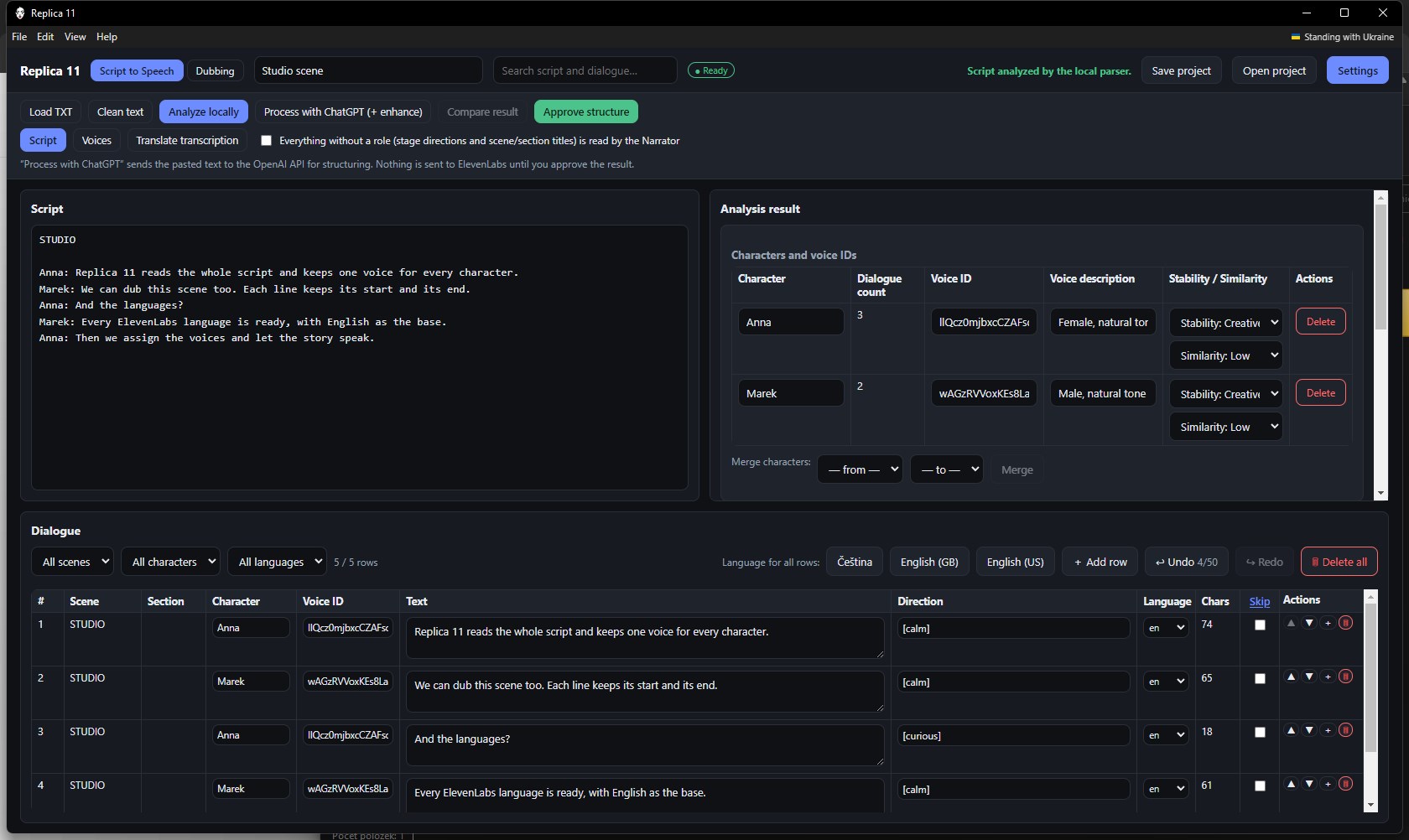
For audiobook authors, this means continuing with the familiar script workflow. For creators who already have an original recording and need a new voice track, it adds a way to preserve the timing of the dialogue. Both workflows share the same app, but each addresses a different task: one starts with a written script, while the other also takes into account when each sentence needs to be heard.
The update also preserves your local settings. Moving to a new version does not mean starting over with your API keys or licence. Replica remains an app you work with on your own computer, where you can open, edit and save your projects again.
How timed dubbing works
Dubbing in Replica 11 is speech synthesis arranged on a timeline. The app does not call the ElevenLabs Dubbing API or copy the acting performance from the original audio. The voice is still shaped by Voice ID, Stability, Similarity and the audio tags already present in each line. Communication with ElevenLabs uses the same API key as ordinary speech generation. The difference is that each line now has its own position on the timeline.
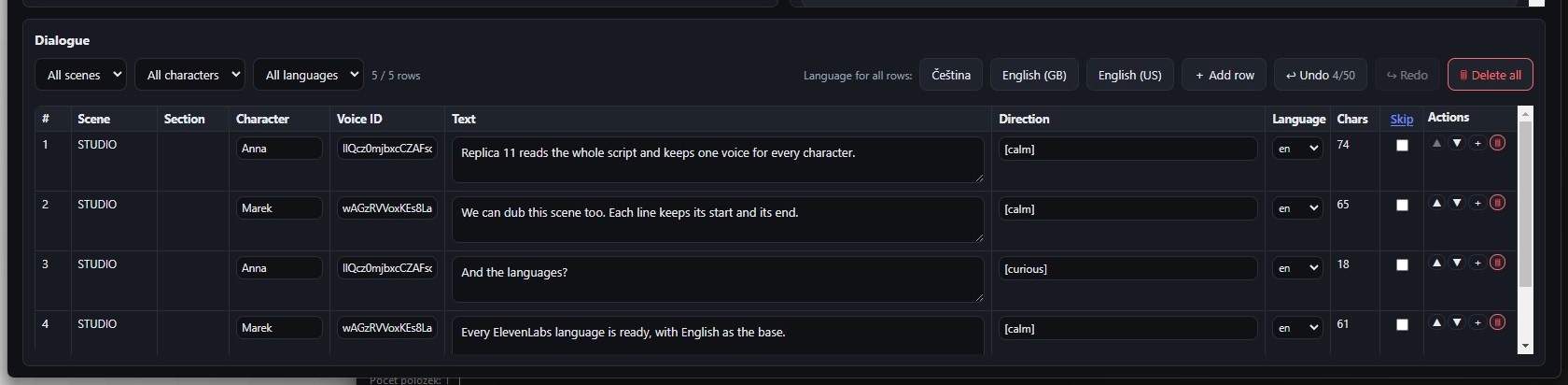
A timed line begins with a time interval in milliseconds, followed by the speaker and the text. If you have a recording and a saved OpenAI key, Transcribe recording fills in the timestamps. Without a key, you can enter timed lines yourself. The app does not include its own transcription model and does not identify individual speakers in a recording. Until you rename the character, the lines retain a single speaker.
From there, the workflow is the same as for a script: analysis, voice assignment and, if needed, translation. Translation can change the words, but it leaves the timestamps and speaker names intact.
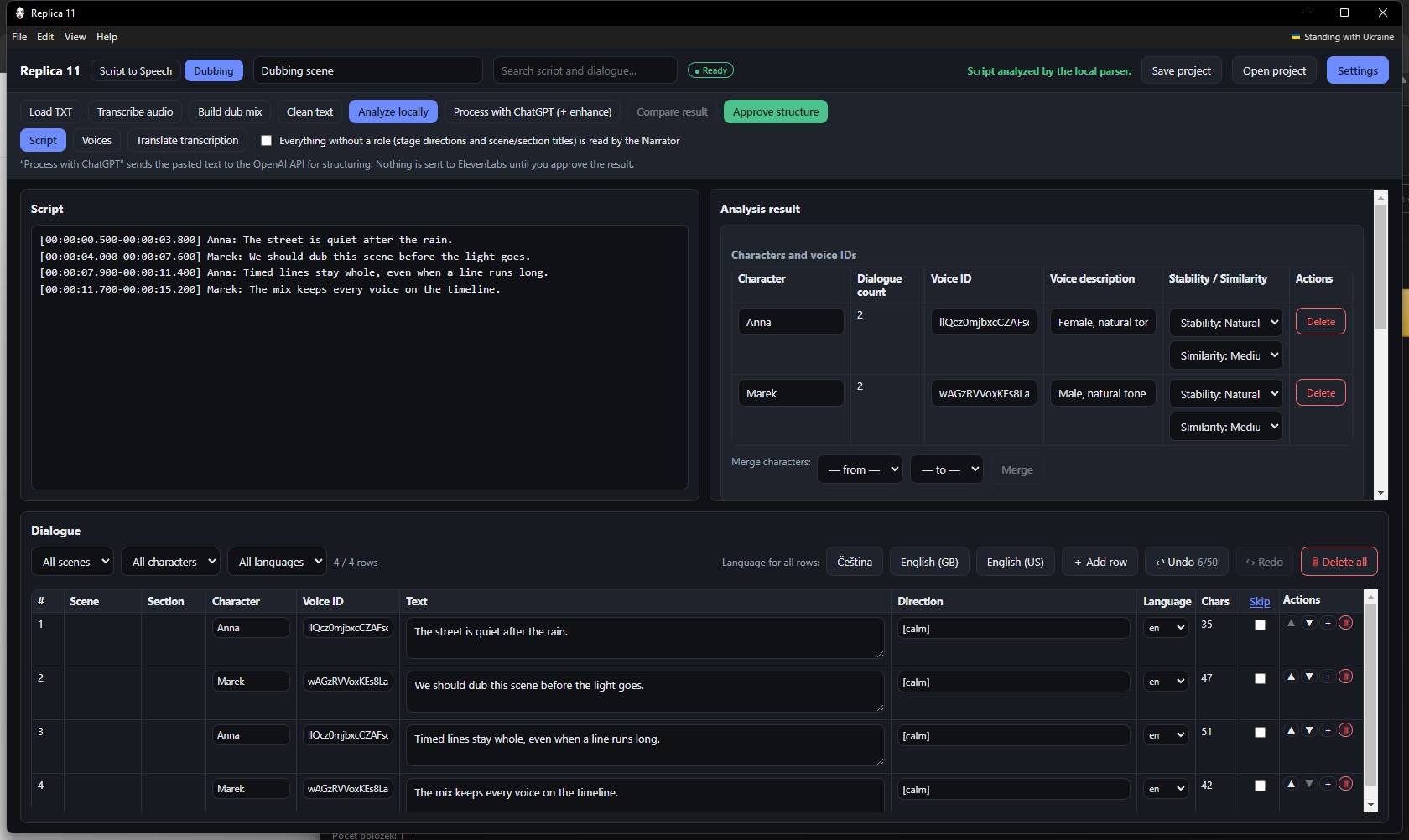
It helps to distinguish analysing a written script from identifying people in a recording. A script provides named characters to work with, whereas transcribing a recording does not, by itself, tell the app which person is speaking. Naming and checking speakers is therefore part of preparing the project. You then assign the appropriate voices to those names.
Checking the translated text matters just as much. A new language version may express the same idea in a longer sentence, even though the timestamps stay the same. Translation helps with the wording, but the generated audio ultimately determines the length of each line. The timeline supports dubbing assembly; it does not guarantee that every phrasing will automatically fit the original interval.
New permissions for your ElevenLabs API key
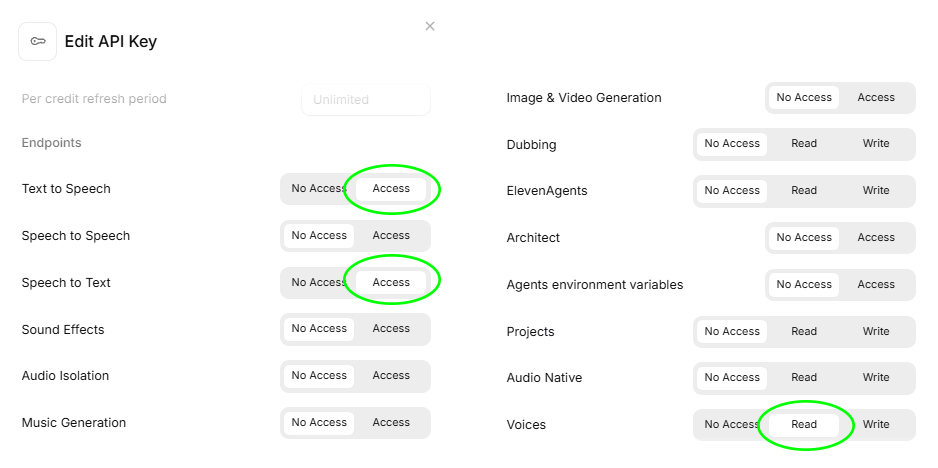
To work with dubbing, your ElevenLabs API key now needs the following additional permissions: Text to Speech – Access, Speech to Text – Access, and Voices – Read.
HQ WAV without cutting off or speeding up dialogue
Dubbing is exported as HQ WAV. The Build dubbing button generates each line separately and places it at its timestamp. Gaps between lines are filled with silence, and the mix length is based on the original recording.
If a sentence is longer than the time window available in the source, Replica does not cut it off or speed it up. It keeps the entire line and warns you about the overrun. The mix is not assembled using ffmpeg, and lines are not stretched to make them fit at any cost.
A typical example is a sentence given only a short slot in the original recording when its new wording needs more time. Replica flags this mismatch and preserves the complete line. You can then return to the text, shorten the wording and generate it again. The app does not silently sacrifice the end of a sentence or its natural pace.
The resulting track contains silence between lines. This workflow is intended to assemble spoken text according to timestamps; music, sound effects and any other layers of a final soundtrack need to be considered separately. Voice ID, Stability, Similarity and audio tags still determine how the newly generated speech sounds.
An ElevenLabs voice library
Alongside dubbing, this version introduces a voice library. You can still enter Voice IDs manually. The Fetch voices function can also retrieve My Voices from ElevenLabs, storing a role, description, Stability and Similarity for each voice.
If a role matches a character after analysis and the character's Voice ID is empty, it is filled in automatically. A voice already assigned in an open project is never overwritten. A voice removed from your account remains in the library and is marked accordingly. The library is stored in the same folder as your other settings, so it survives subsequent installations.
The library is especially useful when you return to the same voices across projects. With an audiobook featuring several characters, you do not want to look up which Voice ID belongs to whom every time you open it. Roles and descriptions give each voice a readable context, while saved parameters help you pick up where you left off.
Automatic assignment also respects the choices you have already made in the project. The library can fill an empty Voice ID based on a role, but it will not replace an existing assignment. That is useful, for example, when one particular scene needs a different voice from your usual choice.
Text cleanup follows the interface language
Clean text now expands numbers, dates and times using the interface language rather than the language of the written sentence. Czech and English are processed locally even when an OpenAI key is saved in the app. For other languages, digits remain unchanged until the text is processed through ChatGPT. Help opens in the main language wherever Replica provides its own manual.
What matters with numbers is how they should actually sound in the recording. A date, time or number may look unambiguous in a written script, but reading it aloud requires a language context. In version 2.0, the interface language provides that context. For multilingual scripts, it is therefore worth checking which language the app is set to before cleaning the text.
For Czech and English, this part runs locally. In other languages, digits are preserved until you use processing through ChatGPT. This gives users a clear distinction between a local edit and a step that uses their OpenAI account.
Codex controls the open app through local MCP
The third new feature is for people who work with Codex. Replica keeps its window open, and Codex communicates with it through local MCP on the same computer. You do not need to copy anything into Settings. Codex can edit the script, run local analysis, switch between Script to Speech and Dubbing, assign voices, and open or save a project.
API keys and licence details do not appear in responses. Paid generation has a separate step: Codex first shows the scope of the operation and only uses ElevenLabs after explicit confirmation. The licence is checked again before anything is sent.
A cloud session on another computer cannot reach the window. The connection stays on the machine where Replica is running. Node.js must be installed on that computer, and the app must remain open.
In practice, you can ask Codex to revise a prepared script and then run local analysis while the app remains open in front of you. The same tasks are also available through its buttons. MCP adds another way to control the app; it does not create a separate cloud copy of the project or provide remote access from any computer.
The point at which paid voice output is generated is kept separate. First, you see the scope of the proposed generation. Only your explicit confirmation allows it to be sent to ElevenLabs. You can therefore move through text preparation, project review and paid speech synthesis as successive steps.
The generation log stays beside your audio files
The log is saved as generation.log in the same folder as WAV and MP3 files. A new generation run overwrites it. Deleting audio files removes the recordings but leaves the log, so you can still see what each batch did.
The log is useful when you need to review what happened during a completed batch or return to lines that need editing. Remember, however, that the next generation run overwrites the same file. If you want to keep a record of a particular batch, save a copy before starting another one.
Where to download Replica 11 2.0
Replica 11 – Script to Speech is available to download from d3arts.cz. You can also find more information, examples and a trial version on the official Replica 11 website. Our From Script to Audiobook guide will help you get started.
The licence covers the desktop app. ElevenLabs voice usage and optional OpenAI features are billed separately through your own accounts.